

What is version control?
Version control is a fancy system that lets computer programmers keep track of all sorts of previous versions of their code as they are working through a project. Files will be changed, new folders will be made, and ever so often the computer programmer will decide to save a version of his code… usually with a brief comment about the new stuff.
Due to the existence of the data from all of the old versions, some cool things become possible, for example:
the computer programmer gains the ability to travel through time.
That’s right, time travel. Those previously saved versions are all possibilities for the present moment. File mutations can be reverted. Folders birthed into existence can be obliterated… and then recreated, all with the proper execution of some widely misunderstood lines of code.
Time-travel is not for everyone.

Git is the name of the most commonly used version control system and it could be argued that Git has a bad reputation (as demonstrated in the figure above). However, as I stated in my previous post, In the name of coding and collaboration, all data scientists must use GitHub, and consequently they must also use git (I will get to github eventually).
Some Of My Progress With Git
So, I have done some work with Git and I would like to show a few examples of some neat things that can be accomplished.
First – Terminal Things
This first part is not Git, but when working with git, you get very good at doing many other things in the terminal/command window, like creating files, creating folders, moving files, deleting files, and the list goes on…
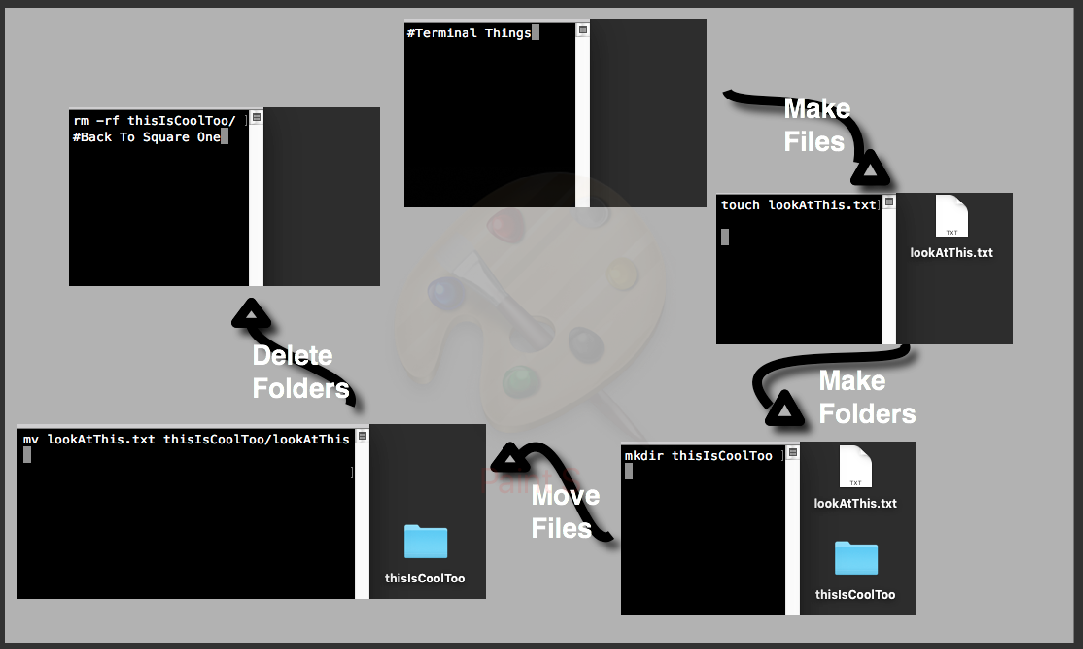
Second – Time Travel
I’ll demonstrate this with an example of file resurrection.
First, find a folder that will serve as the stage for the experiment:
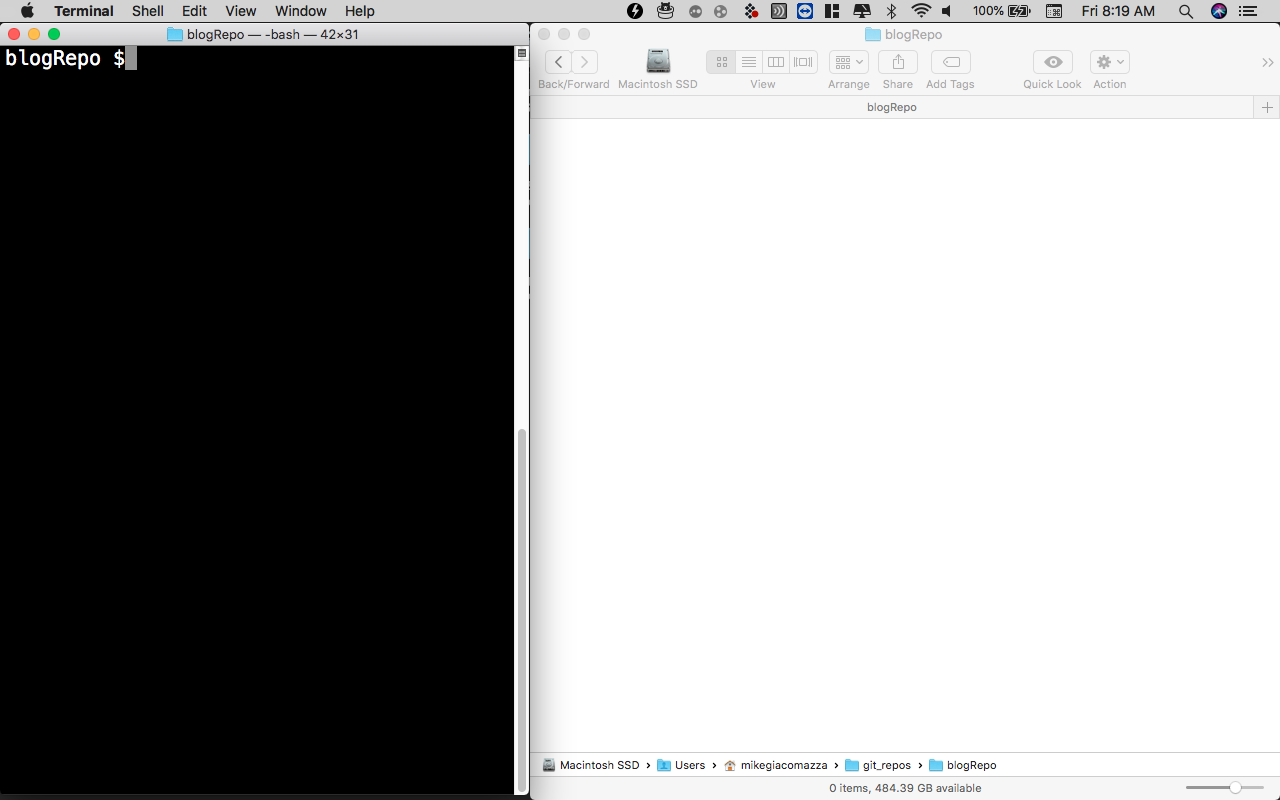
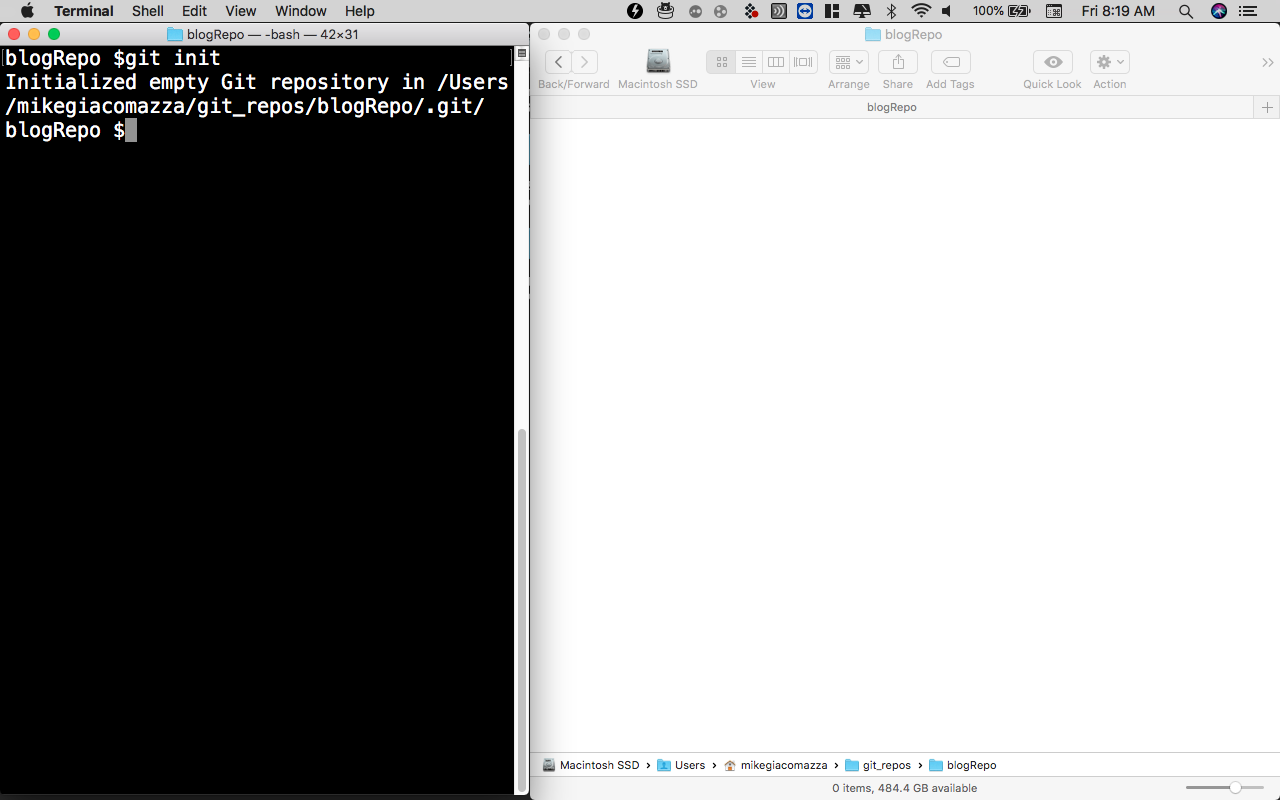
Second, initialize Git inside of the folder:
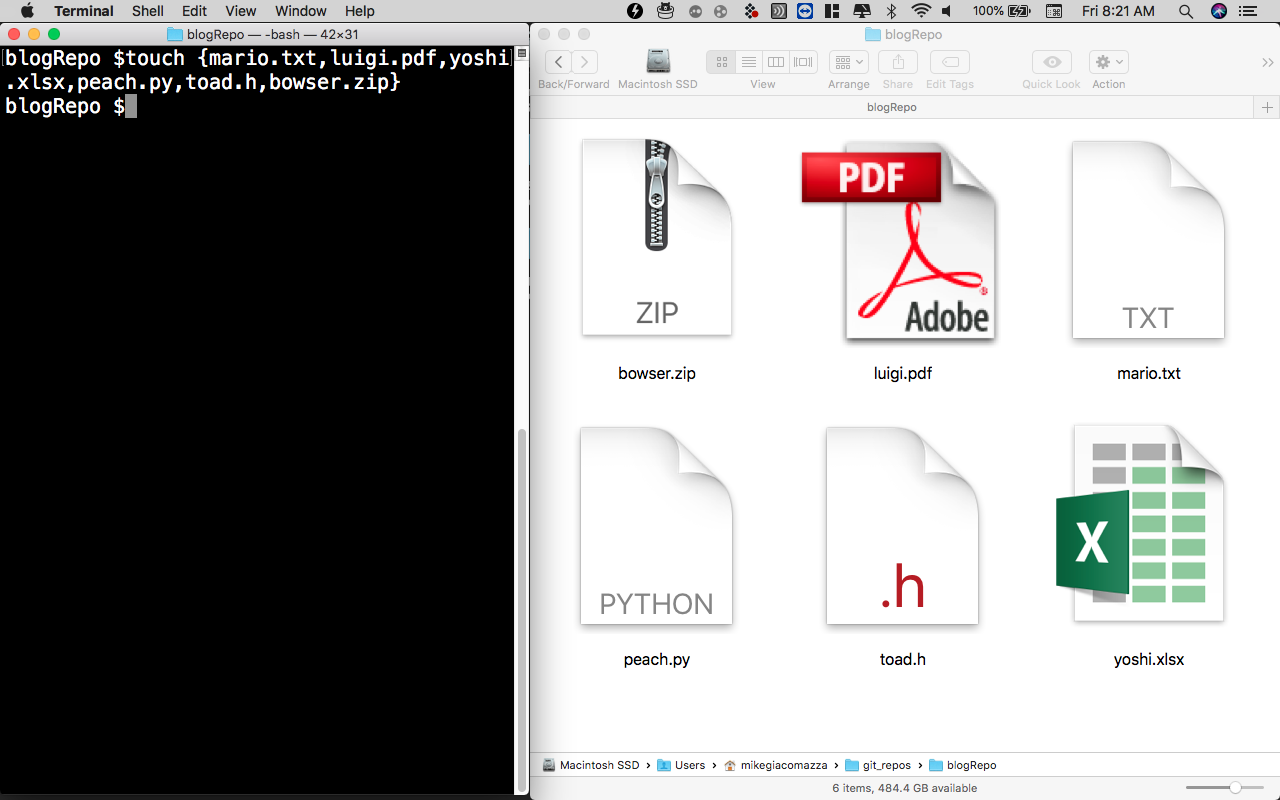
Third, create some files to be sacrificed:
Fourth, capture a moment in time:
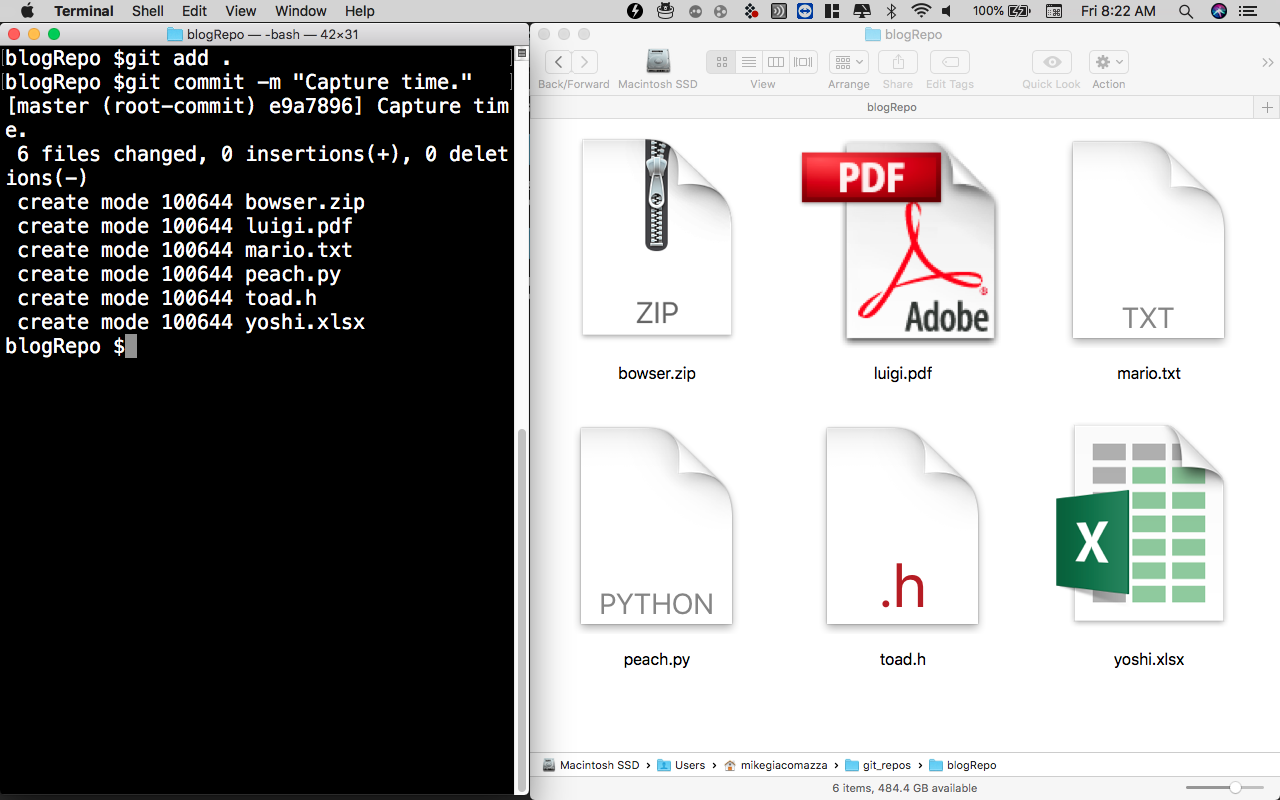
Fifth, destroy everything:
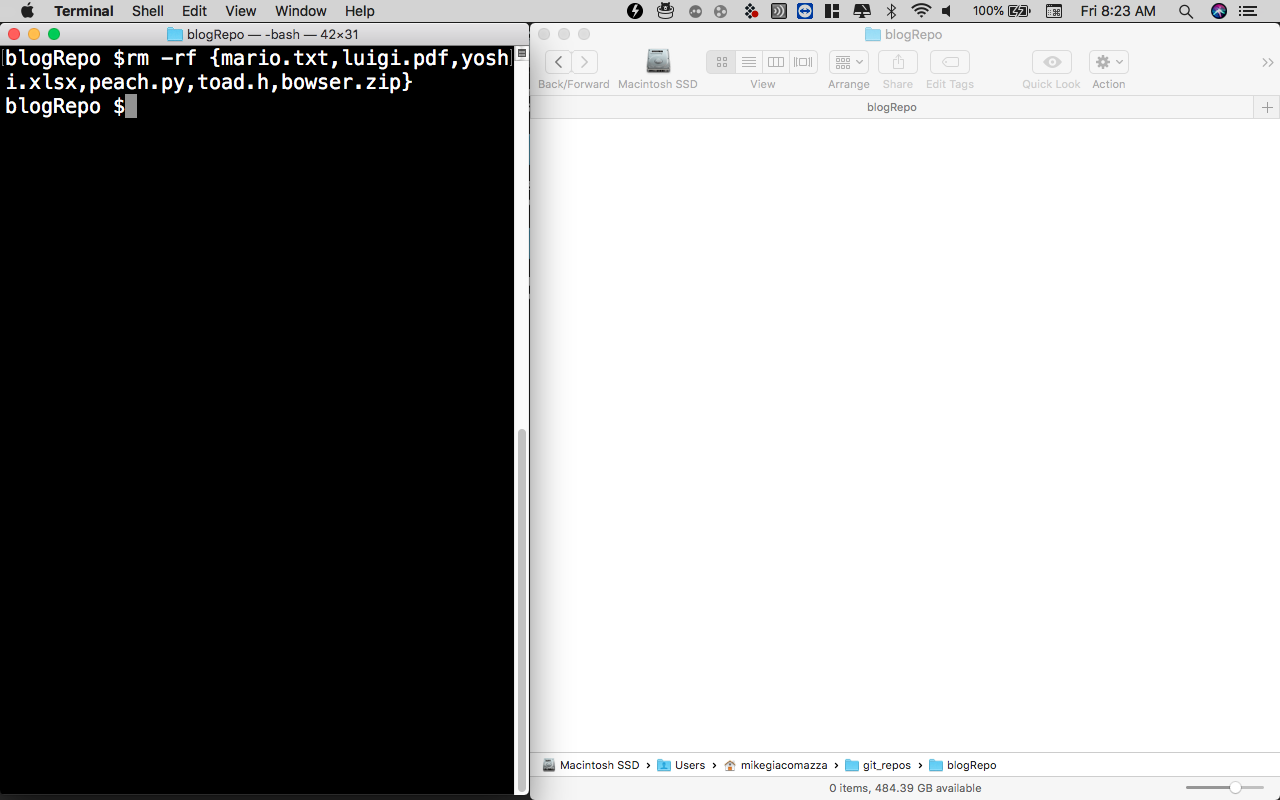
Reset time:
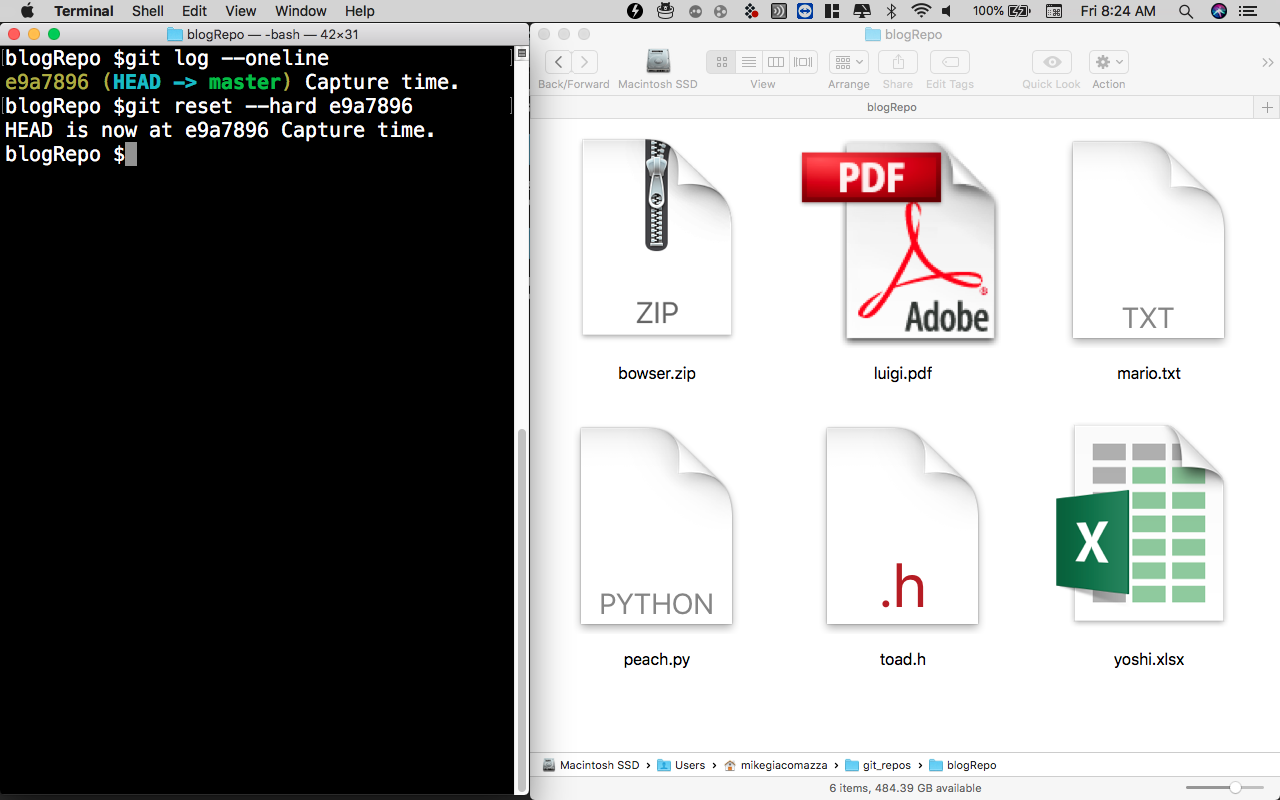
Voila. We have created, deleted, and resurrected some files using git.
Third – Collaborate
This is where GitHub becomes relevant and so now we can ask…
What Is GitHub?
Github is a place that allows you and others to communicate between a local repository (a folder on the computer) and an online repository (a folder online). Then, when multiple people interact with the same repository, collaboration is born.
So, lets collaborate.
There are tons of repositories that we can contribute to. With a quick search, I was able to find this repository with a purpose suitable for our example:
“A practice git repository where you can eff up as much as you’d like plus work with a real, living, breathing person on the other side. Here we learn all things git. Feel free to send Pull Requests to see what it’s like when someone asks you “Can you squash your commits for us” and you’re all like “How the hell do I do that?”
grayghostvisuals
So where to start? First, i’m going to go to the GitHub page for the repository that I like and fork the repository. This means that the project is going to be copied to my library of available repositories on my GitHub profile.

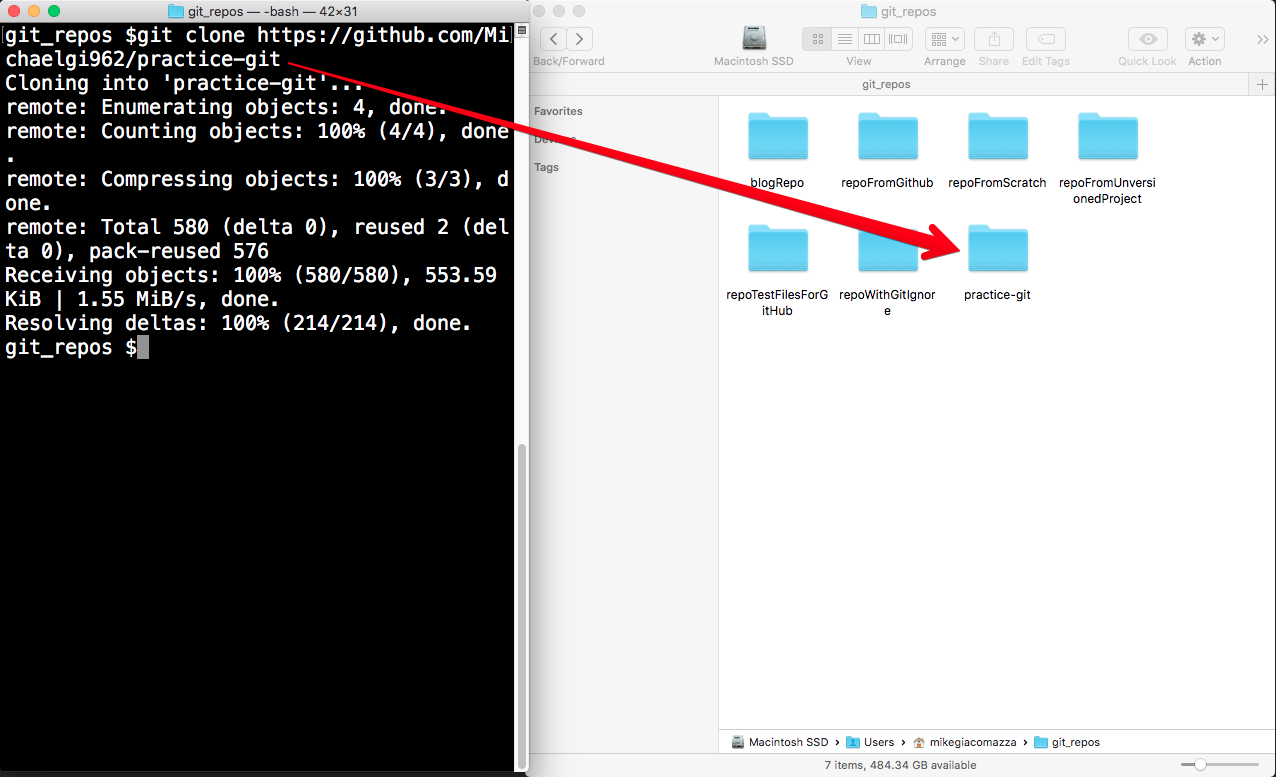
Next I crack open the terminal and clone the repository from my GitHub profile to my computer. I have a folder called git_repos where I have been storing all of my projects and I will include it there.
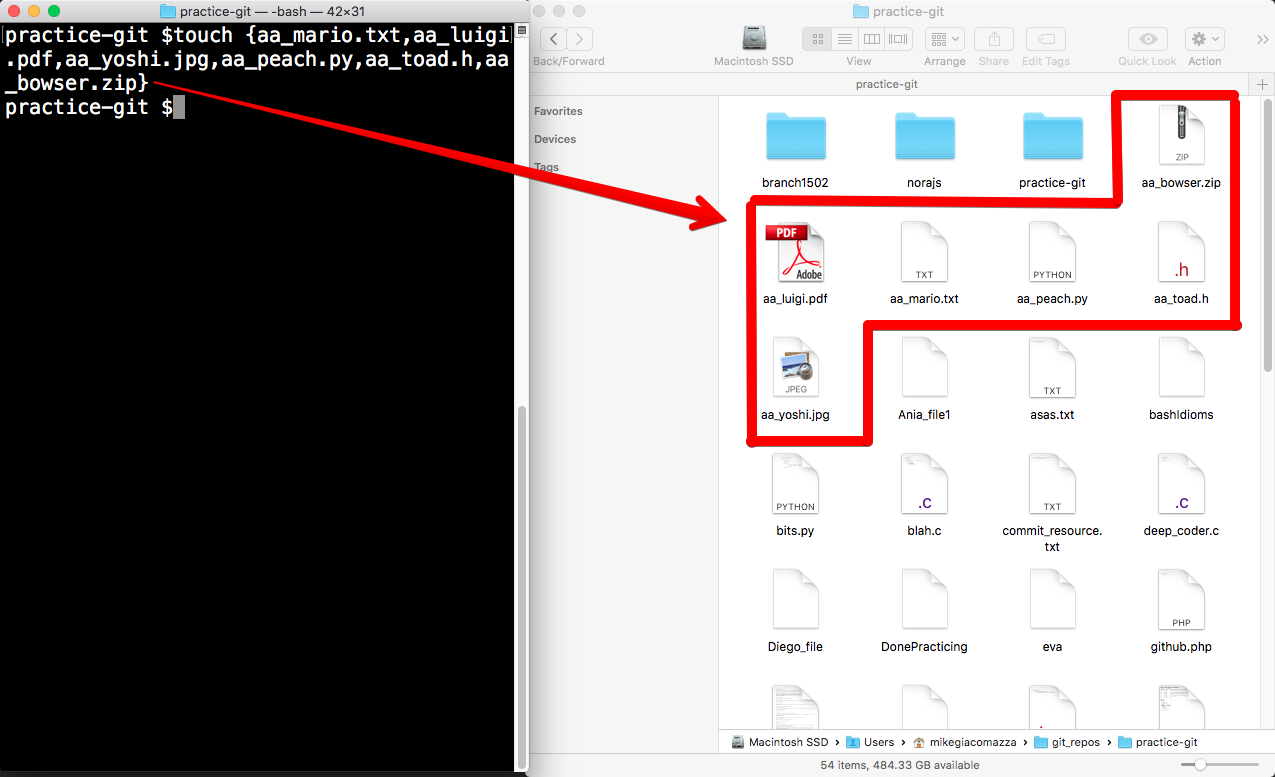
Now I can make some changes. I will enter the project folder and add some files.
I then use Git to save the current state of the repository and add a brief comment about the changes made.

It’s time to push the project back to GitHub. All of the changes that I made will be synced with the repository that is stored online in my GitHub profile.

The final step is to go back to the original GitHub repository and submit a pull request.

This request will ask the owner of the repository if they are willing to accept our amazing contributions, and when they do, GitHub will synchronize our online repository with the original.
Moving Forward
Version control is cool. We will use it to document moments in time and hop around a timeline that we create. Not only that, but with the addition of GitHub, we gain access to a platform for collaboration and a reservoir of codes to develop.
 DataScienceAndThings